Home Screen as Evidence: Auditing the Preloaded Software on CES 2027 Demo Units
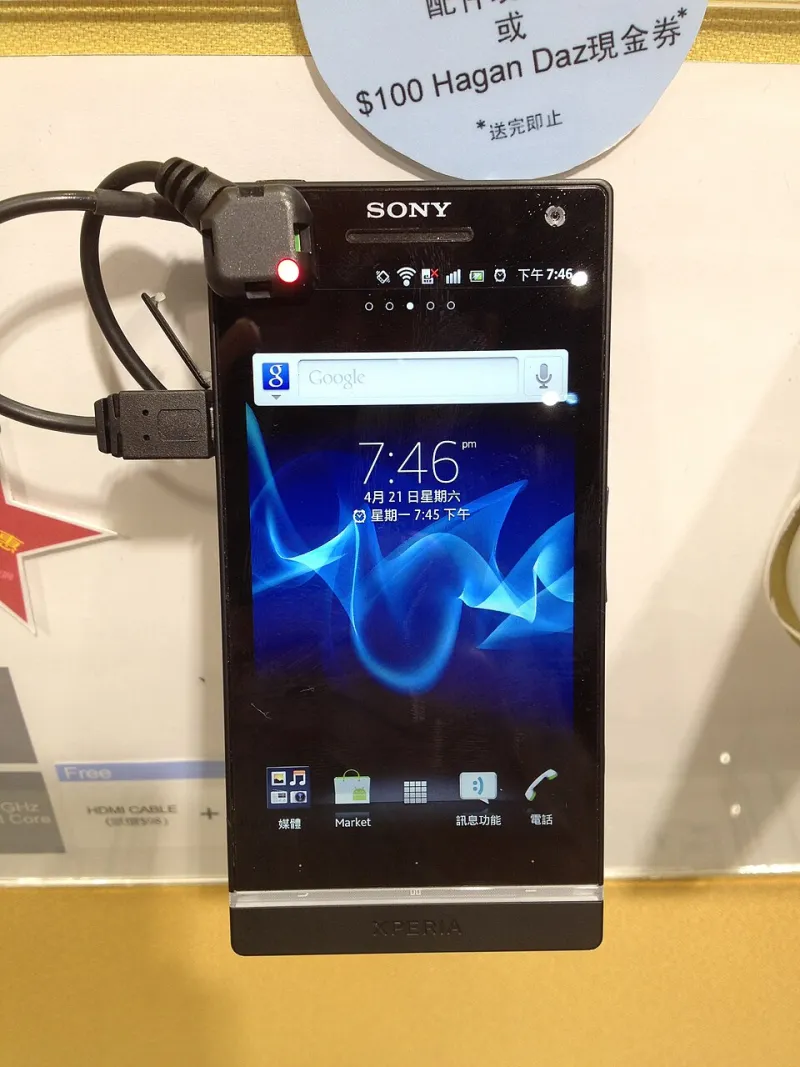
Photo: Novo8, CC BY-SA 3.0, via Wikimedia Commons
On a crowded CES 2027 booth, the hardware gets the spotlight. The home screen gets a glance. That is a mistake. The arrangement of icons, the accounts already signed in, and the services running quietly in the background are not incidental decorations. They are a preview of the retail image, filtered through a demo build. For early adopters, the home screen is the closest thing to a retail unboxing that a show floor can offer. It is also where bloatware hides in plain sight.
Why the Home Screen Matters
Demo units are staged, but staging leaves traces. The default launcher, the preloaded folder named Essentials, the vendor app that cannot be removed — each is a decision made upstream. Those decisions tend to survive the jump from demonstration software to retail software. Past expo cycles have shown that the gap between demo build and retail build is often narrower than vendors imply. In 2026, several show-floor units carried partner apps that reappeared, unchanged, on store shelves months later. The lesson is not that every demo icon is a warning. The lesson is that the home screen is a draft contract, and it is worth reading before preorders open.
Three Tiers of Preloaded Software
The preloaded software on a CES 2027 demo unit generally falls into three tiers. Separating them is the first step toward a useful audit.
Demo agents. These are the guided-tour apps, kiosk helpers, and looped video players that exist only to move a visitor through a scripted experience. Most are harmless, and most disappear in retail. The question is whether they are the only thing that disappears. Ask a booth representative to exit demo mode and observe what remains.
Partner bundles. These are the streaming apps, productivity trials, cloud storage offers, and carrier utilities that arrive with commercial arrangements attached. They are the usual suspects for retail bloatware. Some are removable. Some are not. A few can be disabled but not uninstalled, which is a distinction that matters to anyone who prefers a clean device.
System services. These are the account frameworks, update clients, telemetry agents, and cross-device sync services that sit below the icon layer. They are harder to see and harder to remove. They are also where vendor lock-in tends to live. A system service that requires a vendor account to enable core features is not a demo artifact. It is a business model.
The Demo-Mode Illusion
Many show-floor units run a restricted profile that hides the retail setup flow. The demo mode may suppress first-boot prompts, skip account creation, or pre-sign into a vendor ID. That is convenient for the booth and misleading for the buyer. When examining a unit, ask whether the device is running a demo profile. If the answer is yes, ask what changes at retail. A vendor that can answer clearly is a vendor that has thought about the retail experience. A vendor that cannot may be hoping the question does not come up.
Permissions and Account Scaffolding
Open the settings menu and inspect the app list. Look for permissions granted by default: location, notifications, contacts, microphone, and background data. A demo agent that requests location access is worth a second look. A partner app that requests contacts access before the user has opened it is worth a third. Also check which accounts are already signed in. A pre-signed vendor account is not necessarily a problem, but it is a signal about how the retail setup flow will work. In the US, state privacy laws give consumers rights over their data, but those rights are easier to exercise when the defaults are visible. The booth is a good place to ask what data the preloaded apps collect and whether the retail build changes those defaults.
Vendor Lock-In Hidden in Plain Sight
Lock-in rarely announces itself. It appears as an unremovable app that handles payments, a default cloud service that cannot be changed, a companion app required for a wearable to function, or a third-party app store that is blocked without explanation. None of these are disqualifying on their own. Together, they define how much control the buyer will have after the box is open. Check whether core features require a vendor account. Check whether cross-device sync works with non-vendor hardware. Check whether the default search or browser can be changed. These are small questions with large consequences.
A Booth-Side Checklist
- Identify the default launcher and the apps pinned to the home screen.
- Try to uninstall each preloaded app. Record whether it is removed, disabled, or fixed.
- Open app info for each preloaded title and note permissions and background data access.
- Check which accounts are already signed in and whether they can be removed.
- Ask to exit demo mode and observe which apps remain.
- Ask how the retail image differs from the demo image and when updates ship.
- Look for carrier or retail partner apps that may vary by sales channel.
- Note any install-on-first-boot prompts that appear during setup.
What to Watch Before Preorders Open
The home screen is not a verdict. It is evidence. A preloaded app may be a harmless demo helper, a revenue-sharing bundle, or a load-bearing system service. The only way to know is to ask, inspect, and compare. Before preorders open, watch for retail image documentation, carrier variant disclosures, and software support commitments. If a vendor cannot explain what ships on the device, that silence is itself a data point. The icons on the demo unit are telling a story. The buyer's job is to read it before the box arrives.